How to Set Up an Omnichannel Chatbot Across WhatsApp, Telegram, and Your Website
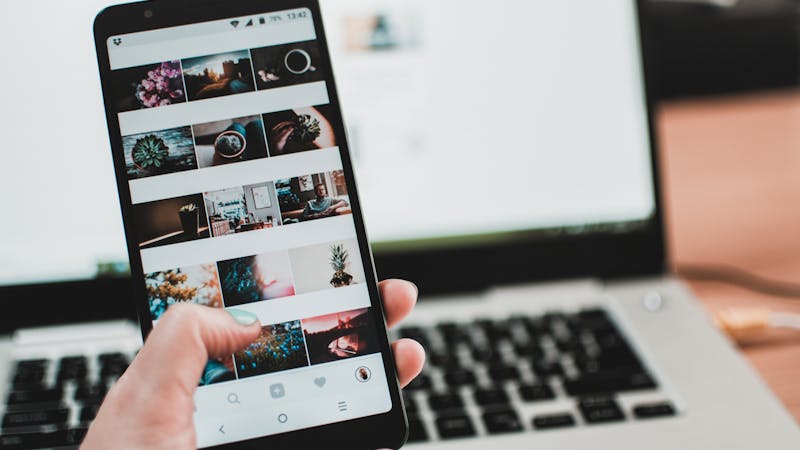
Your customers do not stick to one communication channel. They browse your website on their laptop, send a WhatsApp message from their phone, check your Instagram during their commute, and message your Telegram bot when they get home.
The question is not whether to be on multiple channels — it is how to be on all of them without drowning in complexity or cost.
An omnichannel chatbot solves this by deploying a single AI assistant, trained on a single knowledge base, across every channel your customers use. Same answers, same quality, zero duplication of effort.
What Does "Omnichannel" Actually Mean?
In the context of chatbots, omnichannel means:
- One chatbot trained on your business content
- One knowledge base shared across all channels
- Consistent answers regardless of where the customer messages you
- Unified conversation history across all channels
The 7 Channels Available in PalaChat
PalaChat supports deployment across these channels:
| Channel | Best For | Setup Time |
|---|---|---|
| Website widget | Website visitors, e-commerce, SaaS | 2 minutes |
| Singapore's most-used messaging app | 5 minutes | |
| Telegram | Tech-savvy users, free messaging | 3 minutes |
| Facebook Messenger | Facebook page visitors | 5 minutes |
| Social commerce, brand enquiries | 5 minutes | |
| LINE | Users in Japan, Thailand, Taiwan | 5 minutes |
| Slack | Internal teams, B2B support | 5 minutes |
Step-by-Step Setup Guide
Prerequisites
Before adding channels, make sure your chatbot is trained:
Once the knowledge base is solid, every channel you add benefits from it immediately.
Channel 1: Website Widget (All Plans)
The fastest channel to deploy and usually the highest-traffic one.
Setup: